


Shopify Sidekick is the AI assistant built into the Shopify admin. It is free on every plan, it can read your store’s data with the same permissions you have, and since late 2025 it can take real actions: create discounts, build customer segments, draft campaigns, write automations, generate theme blocks and, on higher plans, build custom apps. Shopify said in its second-quarter 2026 earnings call that daily active merchants on Sidekick grew 3.6 times year on year and that merchants had roughly 34 million conversations with it in a single quarter.
And yet, if you read the Shopify Community forum, the most common reaction is still the one a merchant posted in April 2025: Sidekick is “like getting a new set of LEGO’s, but without the manual.”
This guide is the manual. It is written by the team behind MerchantSkill, a free library of Sidekick skills, and it covers how Sidekick works, what changed in the 2026 Editions, where its documented limits are, how to prompt it so it does what you mean, how the skills feature turns good prompts into repeatable shortcuts, and a weekly routine built on the 25 skills we would save first. Where a capability is documented by Shopify we say so; where we are reporting our own experience running Sidekick on a live store, we say that too.
What Sidekick actually is
Sidekick is a conversational assistant that lives in your admin. On desktop it opens from the icon at the top right of every admin page; on the Shopify mobile app it has its own tab, and since the Spring 2026 Edition it also works by voice and on Apple Watch. You type or say what you want in plain language, and Sidekick works through it using your store’s own data.
Three things distinguish it from a general chatbot.
It can see your store. Sales, orders, products, customers, inventory, discounts, analytics, apps, theme settings. It reads these with the permissions of the staff member using it, so a collaborator with limited access sees limited data through Sidekick too.
It can act. Sidekick creates and changes things in the admin: discount codes and automatic discounts, customer segments, collections, product content, Shopify Email drafts, Shopify Flow workflows, theme blocks on Horizon-based themes, and custom apps on Grow plans and above. Every change goes through a review step before it lands.
It remembers within a conversation and works in the background. You can ask a follow-up question without restating the context, and longer tasks run while you do something else, with a notification when they finish.
Shopify positions Sidekick separately from Shopify Magic, the sparkle buttons that generate text or images inside a single field. Magic fills a blank product description; Sidekick answers “which products should I feature this week and why.” If you want the short version of that difference, read our Sidekick vs Shopify Magic comparison. The rest of this guide is about Sidekick.
How Sidekick got here: the 2025 and 2026 Editions
Shopify ships product updates in two big batches a year called Editions, and Sidekick has been a headline item in each of the last four. Knowing the sequence explains why older articles about Sidekick undersell it.

October 2025: skills. Shopify added the ability to save a prompt as a skill with a slash shortcut. Each user can keep 25, share them with other merchants by link, and shared skills pass a safety check before the recipient can add them. This is the feature that makes libraries like ours possible, and it is the subject of the second half of this guide.
December 2025, Winter ‘26 Edition. Shopify called it the “RenAIssance” Edition. Sidekick gained the ability to build custom apps from a description, to create Shopify Flow automations, to write ShopifyQL for custom reports, to build customer segments, to make guided theme edits and generate theme blocks, to edit images, to edit Shopify Email campaigns, and to remember context. Shopify also introduced Sidekick Pulse, proactive suggestions that appear on the admin home, and opened Sidekick App Extensions to developers so installed apps can expose their data and actions inside Sidekick.
Spring 2026 Edition. Pulse cards moved to the admin home; Apple Watch and follow-up questions arrived; background multitasking let Sidekick run several tasks at once; app code editing gained a preview and version history; customer creation, Flow testing and purchase-order help were added. Most significant for this guide, Shopify launched Store Agent Connectors: official apps that let ChatGPT, Claude and Perplexity read and, within limits, write to your store. Those went live on 4 May 2026.
Summer 2026 Edition. Sidekick became what Shopify describes as an operations analyst, answering questions with charts and tables. It gained the ability to execute compound tasks, so a single prompt can create a collection, a timed discount and an email draft together. Brand-aware product descriptions, theme-block generation on Horizon themes through Magic, support for 20 languages, an AI Sales Associate at POS, and the first Sidekick App Extensions from partners including Klaviyo, Loop and Judge.me all shipped in the same release.
The practical consequence: a guide written in early 2025 describes a tool that could draft copy and answer simple questions. The tool you have in September 2026 can run your weekly operations if you tell it how.
What Sidekick can do, job by job
The most useful way to think about Sidekick is by the job you need done, not by the feature list. Below are the thirteen areas we organize our skills library around, with what Sidekick does in each and one example prompt. Every example is a real request we run; where a capability depends on your plan or theme, we say so.

Sales and analytics
This is where Sidekick is strongest and where most merchants start. Ask for any metric over any period, and ask for comparisons. Since the Summer 2026 Edition it answers with charts and tables rather than only prose.
Compare the last 7 complete days with the previous 7, in the shop’s timezone. Show total sales, orders, average order value, conversion rate and sessions as a table with percentage change. Then list the top 5 products by revenue and the 5 that fell most.
Sidekick reads Shopify analytics only. It does not see Google Analytics, Meta Ads or your email platform, so return on ad spend and email revenue attribution are out of scope. Everything inside Shopify, including sales by channel, by location and by discount code, is in scope.
Products and catalog
Sidekick drafts and updates product titles, descriptions, tags, product types, categories and alt text. Bulk changes go through a review list you approve.
Audit my product titles for inconsistency. Propose one naming pattern, show it applied to five real titles, then list every product that does not fit as a table of current title, new title and reason. Do not change anything until I approve.
SEO and content
SEO titles and meta descriptions, blog posts, collection descriptions, product FAQs. Sidekick has no keyword-volume data, so bring the keyword from Search Console and let it do the writing.
Write two SEO titles under 60 characters and two meta descriptions between 120 and 155 characters for the Classic Tee, targeting “organic cotton tee”. Show character counts. Apply the one I pick.
Discounts and promotions
Percentage, fixed-amount, free-shipping and buy-X-get-Y discounts, as codes or automatic, with start and end times, usage limits and customer eligibility. Compound tasks mean a flash sale can be one approval.
Set up a flash sale on the Summer collection at 20% off from Friday 9am to Sunday midnight. Plan a hidden sale collection, an automatic discount limited to it with those times, and a Shopify Email draft announcing it. Show me all three before creating anything.
Customers and segments
Segments by spend, order count, products bought, location, tags and dates; bulk tagging after confirmation.
Count customers with lifetime spend of 500 or more or 3 or more orders in the last 12 months. Tell me how many qualify and their share of revenue. If the group is under 2% or over 15% of buyers, propose a better threshold. Then ask before creating a segment called VIP.
Email and marketing
Shopify Email campaign drafts, subject-line variants, launch announcements, win-back emails. Sidekick drafts inside Shopify Email; if you send with Klaviyo or Omnisend, you paste the text over.
Draft a win-back email for customers who have not ordered in 90 days. Mention the products they used to buy and what is new since. Three subject lines under 45 characters. Do not invent a discount. Save it as a draft.
Orders and fulfillment
Filtered order lists by status, risk, date, tag and product; bulk tagging; a daily brief.
List paid orders that are still unfulfilled after 3 days, oldest first, and group them by likely cause: out-of-stock item, pre-order, address problem, high risk, or no obvious cause.
Inventory and restock
Days of cover from sales velocity, stockout warnings, dead-stock lists, restock quantities and supplier email drafts.
For every variant that sold in the last 30 days, compute days of cover from current inventory and the daily sales rate. List everything under 14 days, ranked by 30-day revenue, with units on hand and units sold.
Automations with Shopify Flow
Sidekick builds Flow workflows from a description: triggers, conditions, actions. We ask for them to be created inactive so we can review before they run.
Build a Flow workflow: when an order is paid and the customer’s total spend is at least 500 and their tags do not contain vip, add the tag vip. Create it turned off and tell me where to review it.
Store design and images
Theme blocks and guided edits on Horizon-based themes, image generation and editing, announcement-bar copy. On older themes Sidekick cannot edit Liquid or layout; that is the theme editor’s job or a developer’s.
B2B and wholesale
Company records with locations and payment terms, catalogs and price lists, B2B order reviews. Requires B2B features on your plan.
Support and policies
Drafts for Inbox instant answers, shipping and returns policies from your real settings, and replies to “where is my order” questions from the order’s actual status. Sidekick is not connected to Gorgias or Zendesk; you paste the draft.
Setup and brand voice
The unglamorous skills that make everything else better: a brand-voice skill that tells Sidekick your tone, vocabulary and customer once, a store-context card for onboarding, a store health audit.
What Sidekick will not do
Honest limits save more time than feature lists. These are the edges we run into weekly, and each is consistent with Shopify’s documentation as of September 2026.
- It cannot see outside Shopify. No Google Analytics, no Meta or Google Ads, no Klaviyo engagement, no spreadsheets. If a question needs two datasets, export the other one and use the ChatGPT or Claude connector, which can hold both.
- It cannot edit theme code. No Liquid, no layout or font changes on themes that are not built on Horizon, no new page templates.
- It does not send email through third-party tools and does not reply to customers for you. It drafts; you send from Shopify Email, Inbox or your helpdesk.
- It will not take irreversible actions silently. Refunds, cancellations and bulk deletions need you. Well-written skills add an explicit confirmation step for anything that changes data.
- Some capabilities depend on your plan. Custom app generation needs Grow or above. B2B features need B2B on your plan.
- Memory is per user and per conversation. A teammate does not inherit your brand-voice instructions; they save the skill themselves or add it from your shared link.
- It has no keyword data and does not browse competitors.
- Prompt quality matters. “Show me sales” produces a generic answer. A prompt with a timeframe, a comparison and an output format produces a useful one.
That last point is the pivot of this guide. Sidekick’s value is capped by the prompt, and prompts are what skills preserve.
Sidekick, Shopify Magic, and the ChatGPT and Claude connectors
Merchants now have three ways to put an AI assistant on their store, and they overlap enough to confuse.
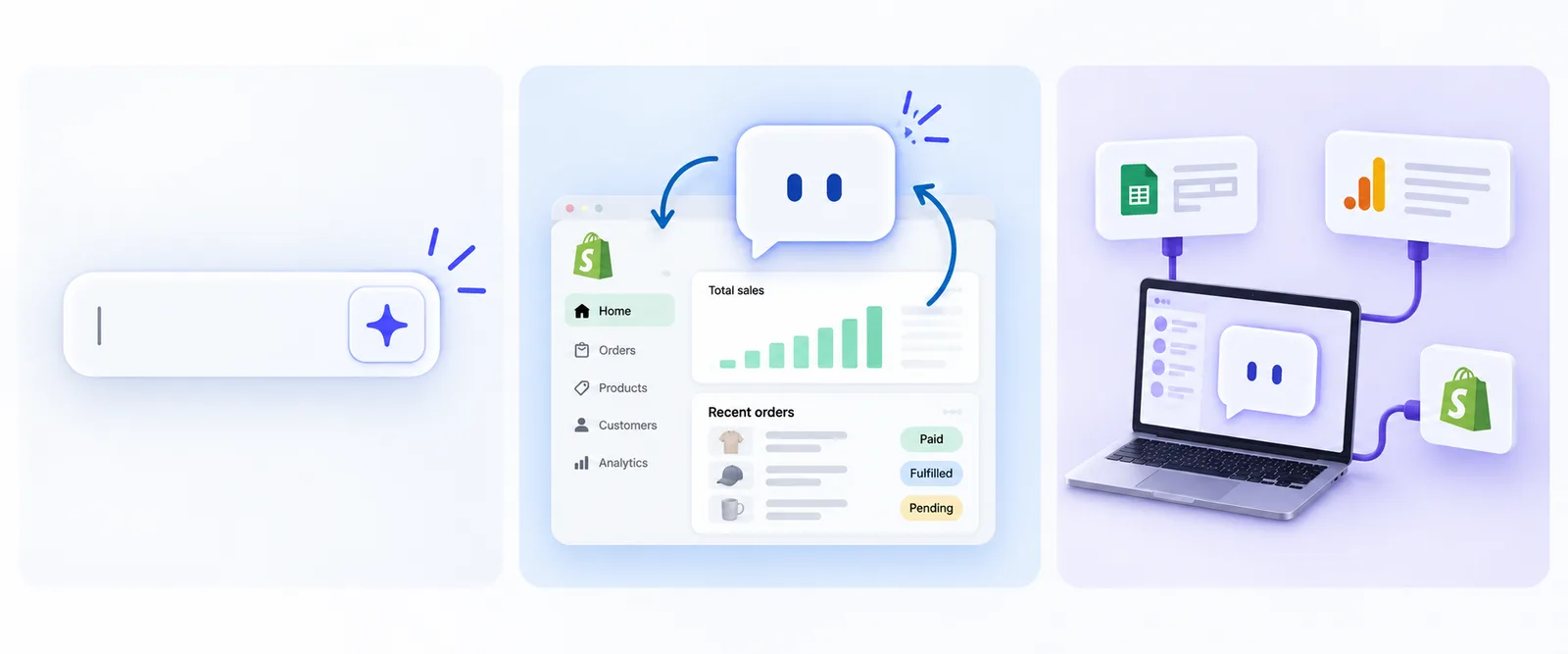
Shopify Magic is the set of sparkle buttons inside specific fields: product descriptions, email subject lines, blog headings, page and theme text, Inbox suggested replies, plus media tools for background removal, logos and banners. It is free on every plan and needs no prompting skill. It also knows nothing about your sales and takes no multi-step action.
Sidekick is the assistant described in this guide: data, actions, automations, skills.
The Shopify apps for ChatGPT and Claude let those chat tools read products, orders, customers, analytics and inventory, and create products, update prices, adjust inventory, create discounts and tag orders. They cannot build Flow, create segments, edit the theme, refund, cancel or change settings. What they add is everything outside Shopify: paste an ad export and ask for blended reporting, or work on a long document over several days.
The rule we follow: Magic for the field in front of you, Sidekick for anything that needs data, steps or repetition, a connector when outside data is involved. The full matrix is in our Sidekick vs ChatGPT vs Claude comparison.
How to prompt Sidekick so it does what you mean
Most Sidekick disappointment is prompt disappointment. The tool is literal, it has no idea what “good” looks like for your store until you tell it, and it will fill gaps with generic ecommerce advice if you let it. Five habits fix most of it.
Give it a timeframe, every time. “Last 7 complete days in the shop’s timezone, compared with the previous 7” beats “this week.” Complete days avoid partial-day distortions; the timezone avoids off-by-one errors for stores whose owners travel.
Fix the output format. Say “as a table with columns X, Y, Z” or “one sentence per action, at most five.” Without this, you get prose one day and bullets the next, which makes weekly comparisons impossible.
Separate analysis from action, and require confirmation. “Show me the list, then ask before tagging” is safer than “tag all customers who…”. Sidekick has review steps, but a prompt that says “do not change anything until I say yes” makes the behaviour consistent.
Name the data sources. “Use sales by product and current inventory” tells Sidekick where to look. “Do not recommend a product that is out of stock” tells it what to check before recommending.
Set the voice once. Put your tone, vocabulary, customer and banned words into a single brand-voice prompt and run it at the start of any content session. Every description, email and policy that follows inherits it.
Here is the difference in practice. A weak prompt:
Write a product description for the Classic Tee.
A strong prompt:
Write product copy for the Classic Tee in our brand voice for gift buyers. Read the product’s options, price and current description, and read two of our best sellers’ descriptions to match how we already write. Give me a first paragraph of 40 to 60 words leading with the main benefit, 3 to 5 bullets that turn features into benefits, a “good to know” line about sizing, an SEO title under 60 characters and a meta description under 155. Show the draft and ask before updating the product. Do not invent materials or certifications. Do not use “elevate”, “unleash” or “premium quality”.
The second prompt is longer, but you only write it once, because the next section is about saving it.
Skills: the feature that makes Sidekick repeatable

A skill is a saved prompt with a shortcut. Instead of retyping the weekly review request every Monday, you type /weekly-review. Shopify shipped skills on 3 October 2025 and the mechanics are simple.
Creating a skill
There are three ways.
- From scratch. Open Sidekick, type
/, choose Create new skill, give it a shortcut such asweekly-review, paste the instructions, save. - From a message you already sent. After Sidekick gives a good answer, hover over your original message and click the skills icon. Sidekick turns that prompt into a skill; you edit the shortcut and text.
- From a shared link. Open a link another merchant shared. You see the shortcut and instructions, review them, and click Add. Shopify runs safety checks on shared skills. This is how the Add to Sidekick buttons on MerchantSkill work: they open your admin with the skill prefilled for review.
Running, editing and sharing
Type / in the chat and your skills appear; keep typing to filter. Skills that use placeholders such as [TIMEFRAME] can be edited before sending or answered when Sidekick asks. From the skills menu you can edit, delete or share any skill; sharing copies a link.
The 25 limit
Each user keeps 25 skills. Teammates have their own 25. That sounds generous until you have saved 25 and want a 26th, so it pays to plan. We built a 25-slot planner for exactly this; the routine later in this guide fits in 25 with three slots spare.
The shape of a skill that works first time
We export skills from Sidekick and the format is consistent, so we write ours the same way. Five parts:
- A description of what it does and when to use it. One or two sentences. This is what Sidekick matches against your request.
- Numbered steps naming the data to read, in order. “Pull the last 30 complete days and the preceding 30: total sales, orders, AOV, sales by product, in one request so the comparison is consistent.”
- Rules for reasoning. “From the returned rows only.” “Never compute a percentage change from a zero baseline.” “Do not recommend a product that is out of stock.”
- An output section that fixes format and length. “Lead with the single biggest opportunity, then at most four more, one sentence each, with a small table.”
- Guardrails. “Do not create discounts, edit products or change the theme as part of this skill; recommend and wait for the user to ask.”
Test a new skill three times with different inputs. If the output shape changes, tighten the output section. If Sidekick asks the same question each run, put the answer in the steps. Then save it, share it with your team, and consider submitting it so other merchants can use it too.
The 25 skills worth saving first
This is the set we would install on a new store today, grouped by how often you run each. Every one is in the MerchantSkill library with its full text, a suggested shortcut, an Add to Sidekick button and a section on what Sidekick cannot do for that task. They are free and released under CC0.
Daily (5 slots)
/orders-today— a morning brief: new orders, to fulfil, on hold, returns pending, anomalies./yesterday-sales— five lines: sales, orders, AOV, sessions and top three products versus the same weekday last week./unfulfilled— paid orders older than three days grouped by likely cause./risky-orders— medium and high-risk unfulfilled orders with the indicators and a suggested action each./wismo— a “where is my order” reply drafted from the order’s real status and tracking.
Weekly (7 slots)
/weekly-review— the one-screen review: comparison table, top and declining products, three actions tied to numbers./top-products— rankings by revenue and units with a stock check on the winners./boost-sales— the biggest opportunities in your own data, as five one-sentence actions./low-stock— variants that will run out within 14 days at the current rate, ranked by revenue at risk./restock— suggested order quantities from lead time and cover, grouped by vendor, with the supplier email drafted./campaign-draft— a complete Shopify Email campaign for a goal, saved as a draft./subject-lines— ten subject lines in five styles with preview text and a recommended test pair.
Whenever needed (10 slots)
/pdp-copy— product description, bullets, SEO title and meta description in your voice, applied on approval./meta-tags— SEO title and meta description options with character counts./alt-text— distinct, accurate alt text for every product image./discount-code— a discount with sane defaults and a clash check against active promotions./flash-sale— collection, timed discount and email draft in one approval./vip-segment— top customers sized sensibly, created as a saved segment./lapsed-90— buyers with no order in 90 days, split into one-time and repeat, with their favourite products./winback-email— a win-back email built on what those customers bought, no invented discount./flow-vip-tag— a Flow that tags VIPs the moment spend crosses your threshold, created inactive./dead-stock— stock with no sales in 90 days, valued, with a clearance action per product.
Setup and one-offs (3 slots)
/brand-voice— tone, vocabulary, customer and banned words, set once per session./store-context— a one-page store summary from live data, for onboarding a teammate or agency./audit-store— twenty checks that quietly hurt sales, ranked by impact, each mapped to a fix.
That leaves nothing spare, so in practice we drop two of the “whenever” skills for a season and add the BFCM pack’s /bfcm-plan and /flow-low-stock from October to December.
A week with Sidekick
Skills only matter if you run them. Here is the routine that the set above supports, as we run it on our own store.
Every morning, ten minutes. /orders-today, then /yesterday-sales. If the brief flags a stuck order, /unfulfilled and, if needed, /wismo for the customer waiting. During peak season add /risky-orders.
Monday, thirty minutes. /weekly-review gives the numbers and three actions. /low-stock tells you what to order; if anything is urgent, /restock drafts the supplier email. /boost-sales if the week looked flat.
Tuesday, content. /brand-voice first, then /pdp-copy for new products and /meta-tags for whichever pages Search Console says are slipping.
Wednesday, marketing. /campaign-draft for the week’s email, /subject-lines to pick the test. Once a month, /lapsed-90 followed by /winback-email.
Thursday, promotions. /discount-code for partner and influencer codes; /flash-sale when a slow line needs clearing.
Friday, housekeeping. /dead-stock once a month; /audit-store once a quarter; /alt-text after any batch of new products.
Two hours a week, and none of it is typing the same request twice.
Rolling Sidekick out to a team
Most guides treat Sidekick as a solo tool. On a store with two or more people in the admin it becomes something closer to a shared operating manual, and a few decisions up front make the difference between a team that runs the same routine and a team where everyone has a different, half-remembered prompt.
Fix staff permissions before anything else. Sidekick acts with the permissions of whoever is using it. If your customer-service teammate cannot see reports, their /weekly-review returns nothing useful; if your marketer can edit products, their /pdp-copy will. Decide who should be able to change what in Settings › Users, and Sidekick will respect it without any extra configuration.
Appoint one owner for the skill set. Skills live per user, so without an owner you end up with four slightly different versions of the weekly review. One person writes and tests the canonical version, shares the link, and everyone else adds it. When the owner improves a skill, they re-share and teammates replace their copy. It is the same discipline as keeping one source of truth for a spreadsheet.
Agree a naming convention. Shortcuts sort alphabetically in the slash menu, so prefixes group related skills: flow- for every automation builder, b2b- for wholesale. Keep names under twenty characters, lowercase, hyphenated, and never two that differ by a letter. A shared list, even a note in your team chat, saves the “what did we call it” question.
Share the brand voice first. The single most valuable shared skill is /brand-voice, because it makes every teammate’s copy sound like the same store. Share it on day one, before any content skill.
Onboard with a context card. New hires and agencies get /store-context on their first morning. It produces a one-page summary of the catalog, best sellers, customers, policies, apps and gaps from live data, which beats any static onboarding document because it is never out of date.
Schedule an Edition review. Shopify ships Editions twice a year, and Sidekick’s behaviour shifts with them. Put a thirty-minute review in the calendar for the week after each Edition: run the ten skills you use most, note anything that changed, tighten the text, re-share. We do the same for every skill in the MerchantSkill library and record the Edition each was last verified on.
Decide what stays human. Refunds, cancellations, supplier commitments and anything customer-facing that goes out under the store’s name should have a person in the loop. Write that into the guardrails of the relevant skills so the rule travels with the skill, not with the person who remembers it.
Measuring whether Sidekick is paying off
It is easy to feel productive with an assistant and hard to prove it. Four measures keep the feeling honest.
Time per recurring task, before and after. Pick five tasks you do every week, such as the Monday review, the low-stock check, a product description, a discount setup and a shipping-status reply. Time each once the old way, then time the skill. On our store the weekly review went from about forty minutes of clicking through reports to under ten including reading, and a product description from twenty minutes to five. Your numbers will differ; the point is to have them.
How often skills actually run. Sidekick does not report usage, so keep a simple tally for a month. A skill nobody runs is a slot to reclaim. A skill that runs daily is a candidate for a Flow automation, which removes the human step entirely.
Operational outcomes Sidekick can influence. Days between order and fulfilment, the number of stockouts on best sellers, the second-purchase rate after you start the post-delivery follow-up, the share of products with complete SEO fields after an /audit-store pass. These are numbers Sidekick can report on itself, which makes the measurement part of the routine.
What Sidekick cannot move. Traffic, ad efficiency and email deliverability live outside Shopify. If those are the constraint, no amount of prompting will fix them, and it is better to know that in month one than to blame the tool in month three.
The honest summary from our own store: Sidekick has not replaced anyone and has not found revenue that was not already there. It has removed most of the repetitive admin from the week and made the weekly numbers something we read rather than something we assemble. For a small team that is the difference between running the store and being run by it.
Permissions, safety and trust
Sidekick acts with the permissions of the person using it. A staff member who cannot see reports cannot see them through Sidekick either, and a collaborator without product access cannot update products by asking nicely. That is the single most important thing to understand before rolling Sidekick out to a team: fix staff permissions first, and Sidekick inherits them.
Shared skills pass Shopify’s safety checks before a recipient can add them, and the recipient always sees the full instructions before clicking Add. Even so, read a skill before you add it, and prefer skills that ask for confirmation before creating or changing anything. Our own checklist for every skill we publish: no delete or bulk-edit without confirmation, no instructions to fetch external URLs, no credential requests, and discounts or price changes always ask first.
Data stays inside Shopify. Sidekick does not send your store data to third-party tools unless you connect one, and the Store Agent Connectors for ChatGPT and Claude have their own authorization screen where you choose how much data each can access. Review that screen carefully; there is no sandbox mode.
Mistakes we see most often
Treating Sidekick like search. Short questions get short, generic answers. Give it a timeframe, a comparison and a format.
Asking for the world in one prompt. “Improve my store” is not a task. “List the twenty most common store problems, check each, and rank the failures by impact” is, and that is exactly what a good skill does.
Skipping the brand-voice step. Every merchant who says Sidekick’s copy sounds generic has skipped it. Run /brand-voice and the same request produces copy that sounds like your store.
Letting skills go stale. Shopify ships Editions twice a year and Sidekick changes with them. Re-run your important skills after each Edition and tighten anything that drifted. We re-verify our library on the same schedule.
Saving 25 near-duplicates. /sales, /sale, /sales-report and /report fight for the same slot. Pick short, distinct nouns and keep a few slots free for seasonal skills.
Expecting it to read your ad platform. It cannot. Export and use a connector, or accept that Sidekick’s job is the Shopify half of the picture.
Frequently asked questions
Is Sidekick free? Yes, on every Shopify plan. Some capabilities, such as building custom apps, require Grow or above.
Does Sidekick work in my language? Shopify announced support for 20 languages in the Summer 2026 Edition. Check Shopify’s documentation for your specific language and market.
Can my whole team use the same skills? Each user has their own 25. Share a skill by link and each teammate adds it, or send them a pack page from MerchantSkill and they add the set.
Can Sidekick see my Klaviyo or Meta data? No. Use the ChatGPT or Claude connector with an export for blended analysis.
Will Sidekick change something without asking? Actions go through review steps in the admin, and well-written skills add an explicit confirmation. It will not refund, cancel or bulk-delete on its own.
What happens to my skills if Shopify changes Sidekick? They stay saved. Some may need tightening after an Edition; that is why every skill on MerchantSkill shows the Edition it was last verified on.
Where do I get skills I did not write? From other merchants’ shared links, or from the MerchantSkill library, which has 52 skills across the thirteen areas above, each with an Add to Sidekick button.
Where to start today
If you have never opened Sidekick, open it now and paste the weekly review prompt from the “How to prompt” section. Read the answer. Then save it as a skill with the shortcut weekly-review, and next Monday type the slash instead.
If you already use Sidekick, save /brand-voice and run it before your next content task; the difference in copy quality is the fastest win in this guide.
If you want the whole routine, add the Weekly operations pack and the First 10 skills for a new store, then use the planner to choose the rest of your 25.
Sidekick is a capable assistant that most merchants underuse because the manual was missing. Consider this the manual, and the skills the pages you tear out and keep.